

The Questions You Need to Answer
Without centralized governance, your security team can’t answer basic questions:Visibility
- Which AI agents are employees using?
- Which internal systems do those agents connect to?
- What data flows through those connections?
Control
- Is there an approval process for new integrations?
- Can you revoke access across all agents at once?
- Do you control which tools are available to which roles?
Compliance
- Can you produce an audit log of all agent activity?
- Are you confident PII isn’t flowing to model providers?
- Do your DLP policies cover agent connections?
Incident Response
- If credentials were compromised, what did the attacker access?
- What did this agent do between 2pm and 4pm last Tuesday?
- Could a departing employee exfiltrate data through agent integrations?
Architecture
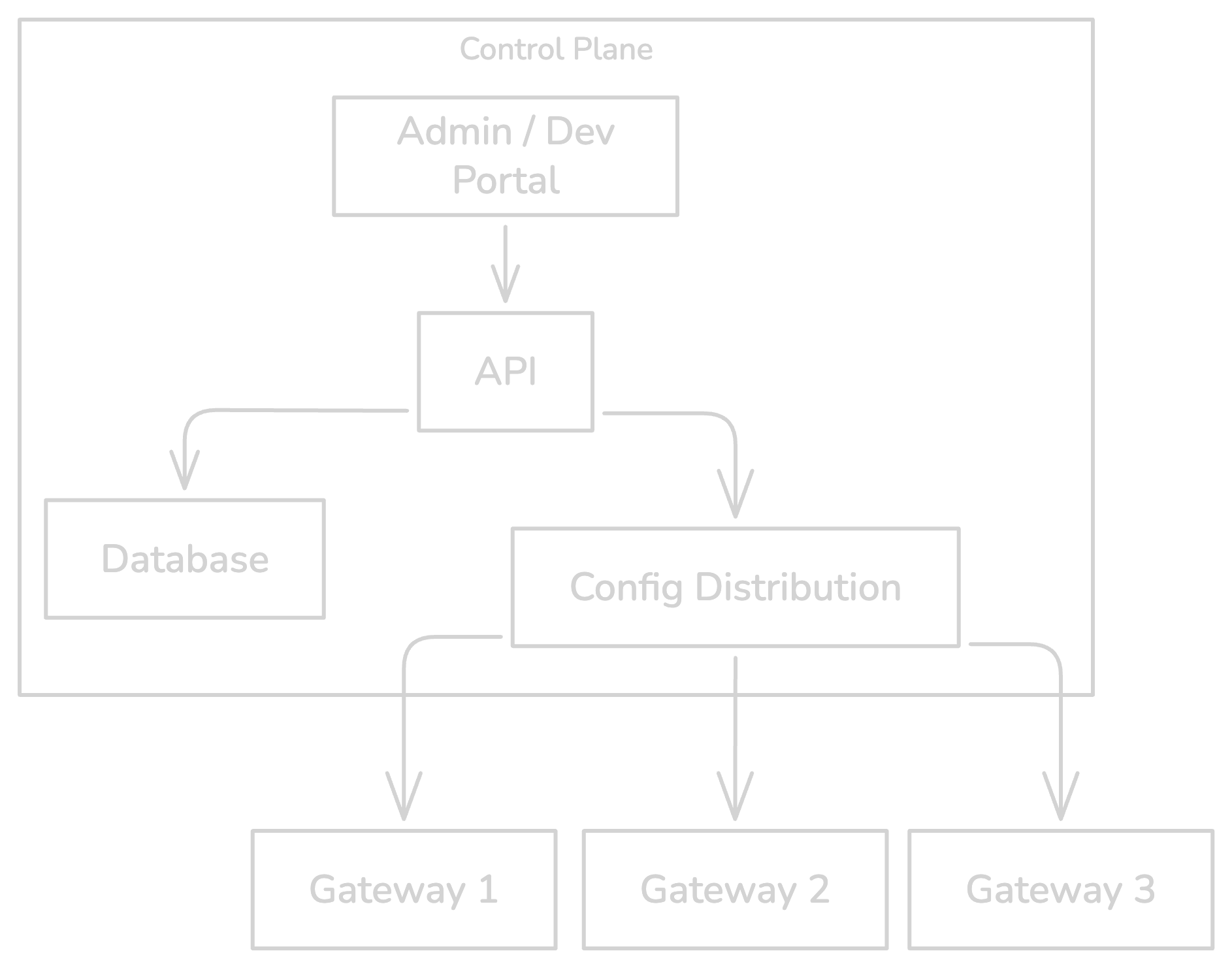
Hosting Options
The Control Plane can be deployed wherever your organization requires:- Golf Cloud
- Self-Hosted
Managed by Golf
- Hosted and operated by Golf
- Zero infrastructure management
- Automatic updates and scaling
- SOC 2 Type II compliant
Organizations
Organizations are the top-level tenant boundary in Golf. Each organization has its own:- Gateways
- MCP Servers
- Identity Providers
- Exporters
- Members and RBAC groups
Member Roles
Gateway Manager
The Gateway Manager handles the lifecycle of all gateway instances.Gateway Lifecycle
Creating a Gateway
- Navigate to Gateways > Create Gateway
- Enter gateway name and external URL
- Save the API key immediately (only shown once)
- Configure gateway with ID, API key, and Control Plane URL
MCP Server Management
Server Types
Third-Party Server Authentication
When MCP servers require authentication to external services (GitHub, Notion, Slack), Golf Gateway manages per-user credentials. How It Works:- User clicks “Authorize” on a third-party server card in the Dev Portal
- Gateway initiates OAuth flow with the external service
- User grants permissions
- Gateway stores encrypted access + refresh tokens
- On each MCP request, gateway injects the user’s token
- Tokens are encrypted at rest and at transport
- Per-user scoping: each user has their own credentials
- Automatic token refresh when access tokens expire
- Credentials never sent to client, only injected by gateway
For Developers (Dev Portal)
The Dev Portal is where you discover available MCP servers and get connection instructions for your AI tools.Finding and Connecting to Servers
- Sign in to Golf Control Plane
- Browse available servers on the MCP Servers page
- Click a server to view its URL and capabilities
- Copy the gateway URL to your MCP client configuration
You only see servers you have access to based on your group memberships. Contact your administrator if you need access to additional servers.
Troubleshooting
- Server not appearing: Verify the gateway URL is correct, check that the server is enabled, restart your MCP client
- Authentication errors: Re-authorize the server through the OAuth flow or re-enter your API key
- Connection timeouts: Check network connectivity to the gateway, verify gateway status is green
- Can’t see expected servers: Server may need admin approval or be in a different organization
For Administrators (Admin Portal)
The Admin Portal provides comprehensive tools to manage MCP servers, gateways, security policies, and monitor system activity.Configuration Sections
Monitoring
The Admin Portal provides three monitoring views: Analytics: View usage metrics and system health including request volume, token consumption, error rates, and latency metrics. Security Incidents: Investigate blocked requests, RBAC denials, replay attempts, rate-limit events, and PII redaction events. Audit Logs: Search and investigate audit logs with graph view for MCP message flow visualization and timeline view for chronological events.Governance Capabilities
Integration Inventory
See every MCP server your organization uses:- Which gateways it’s assigned to
- Which groups can access it
- What capabilities it exposes
Access Control
Enforce least privilege by default:- Server RBAC (which teams can access which servers)
- Capability RBAC (which roles can use which tools)
- Approval workflows for new integrations
Audit & Visibility
Log every request across all gateways: you can see WHO did WHAT and WHERE. Search and filter. Export to your SIEM. Answer auditor questions.Policy Enforcement
Golf Gateway uses a 3-layer policy hierarchy for flexible governance:Related
- Gateway - The runtime component that routes traffic
- Deploy in Centralized Mode - Setup guide